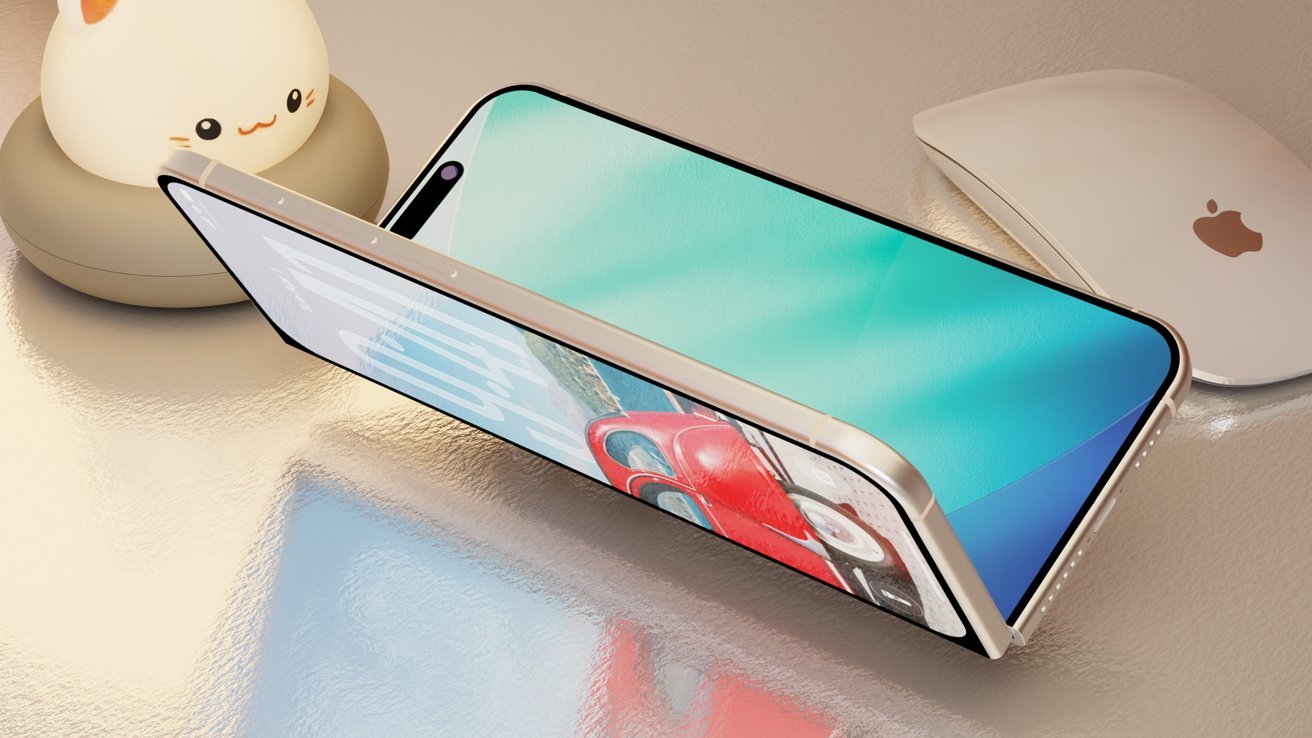





Face ID made its debut with the iPhone X in 2017, and Apple has since expanded the biometric security feature across almost its entire device lineup. One notable exception has been the iPad Air, which continues to rely on Touch ID. Now, evidence suggests Apple’s upcoming iPhone Ultra could follow the same approach.
According to well-known code researcher “pdfu,” Apple appears to have added strong evidence that the iPhone Ultra will feature Touch ID. The discovery was made within code related to Apple’s Car Key feature, where iOS 27 reportedly introduced a second option starting with the fourth developer beta.
The latest code includes a localization string describing an iPhone equipped with both Touch ID and Ultra Wideband (UWB). Another, older entry also references Touch ID while specifically mentioning UWB.
As “pdfu” points out, every current iPhone equipped with a UWB chip also features Face ID. That means the code isn't definitive confirmation that the iPhone Ultra will use Touch ID, but it is perhaps the strongest indication yet ahead of Apple’s expected announcement on September 9, 2026.
What Touch ID Could Mean for the iPhone Ultra
Apple previously demonstrated some impressive engineering when it introduced Touch ID in the sleep/wake button of the iPad Air. At the time, reports suggesting such a design were widely dismissed as unlikely.
The approach allowed Apple to eliminate the traditional Home button while keeping the display almost entirely unobstructed. At the same time, it gave the iPad Air a clear distinction from the more expensive iPad Pro, which uses Face ID.
Touch ID therefore helped Apple position the iPad Air between its entry-level and premium iPad models in terms of both features and price.
The situation is different with the iPhone Ultra. If the device is indeed Apple’s first foldable iPhone, its expected price would make it the most expensive iPhone ever released. That could mean customers are effectively paying more for what is, in one respect, an older biometric technology.
However, that may not be a major concern for users who have already experienced Touch ID on modern Apple devices. For many, the convenience and reliability of a fingerprint sensor could make it a perfectly reasonable choice—even on Apple’s most premium iPhone.
How to Share iPhone Contacts Instantly Using NameDrop
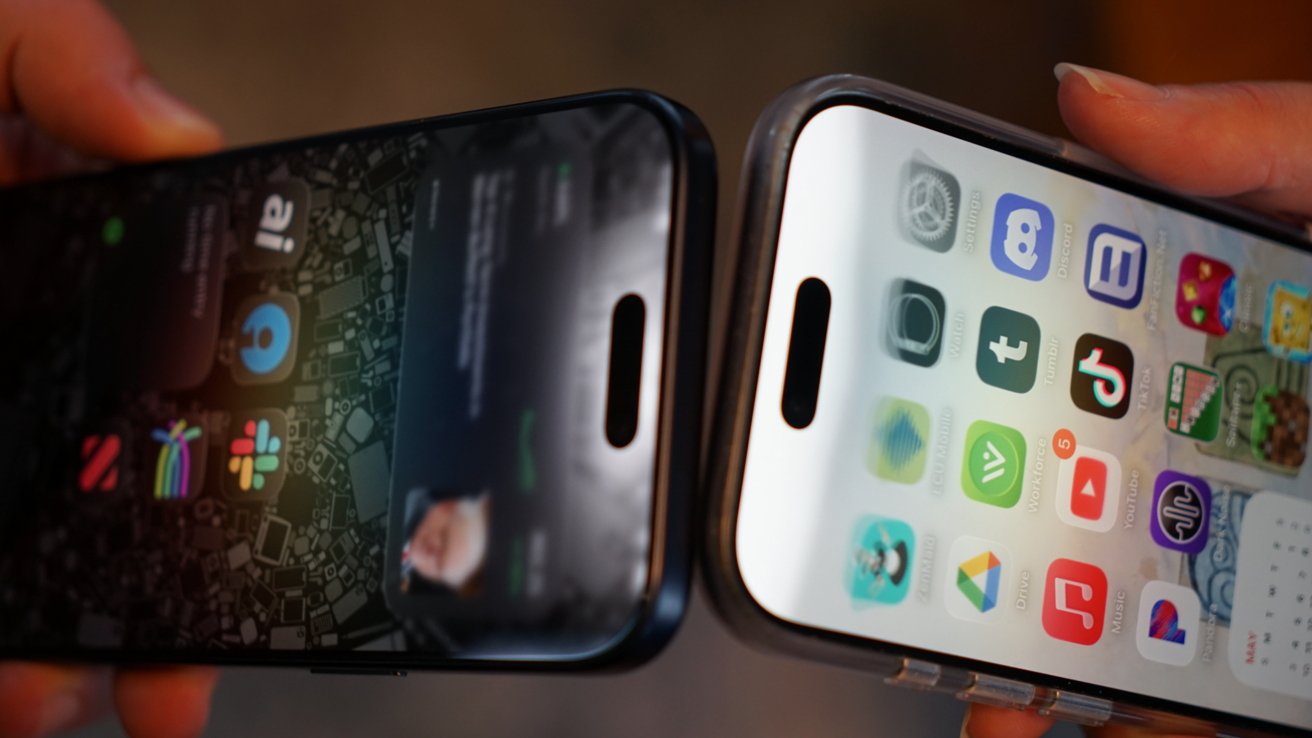
Apple introduced NameDrop with iOS 17 as part of its broader contact-sharing experience built around Contact Posters. Rather than manually entering a phone number, users can simply bring two iPhones close together and choose whether to share or receive contact details.
The process is quick and almost feels like magic when everything works correctly. Here’s how to use NameDrop on your iPhone, along with some common reasons it may not work as expected.
By default, NameDrop only shares your name, Contact Poster, and primary phone number and/or email address.
How to Use NameDrop on iPhone
Using NameDrop is straightforward once both iPhones are properly configured. Both devices must be running iOS 17 or later and have AirDrop enabled. The feature is turned on by default unless its related settings have been changed.
Unlock both iPhones and leave them displaying the Lock Screen or Home Screen.
Bring the top edges of the two iPhones close together for a second or two.
Wait for the NameDrop animation and Contact Poster preview to appear.
Select Receive Only to receive the other person's contact details, or tap Share to exchange information.
Keep the devices close together until the transfer is complete.
If NameDrop doesn't appear, check that both phones are unlocked and that Bluetooth, Wi-Fi, and AirDrop are enabled. Locking either iPhone or disabling Bluetooth or Wi-Fi can prevent the sharing interface from appearing.
NameDrop is designed to make accidental contact sharing difficult. The glowing animation, haptic feedback, and full-screen Contact Poster preview make it clear when the feature has been activated. Contact information cannot simply be pulled from another iPhone without the user's interaction.
Because NameDrop uses technologies similar to those behind AirDrop and Apple Pay, users generally don't need to remove their phone cases. Modern cases are designed to allow NFC and other wireless signals to work normally.
The phones need to be very close to initiate NameDrop, but they don't have to remain directly touching throughout the entire exchange. Once the sharing options appear, the devices can be moved apart slightly while each person responds to the prompts.
How to Use NameDrop With Apple Watch
NameDrop also works between an Apple Watch and an iPhone, as well as between two Apple Watches. The process is similar to using the feature on an iPhone, although the Apple Watch's smaller display provides less visual feedback.
As long as the devices are updated and their default AirDrop, Wi-Fi, and Bluetooth settings remain enabled, bringing them close together should initiate the NameDrop process.
Bring the front of the Apple Watch close to the top edge of the other person's iPhone or Apple Watch.
Wait for the NameDrop animation and contact-sharing interface to appear.
Approve the exchange and keep the devices close until the transfer is completed.
On Apple Watch, the available options are more limited than on iPhone. Instead of the larger Contact Poster preview, users will generally see options such as Continue or Receive Only.
As with iPhone-to-iPhone NameDrop, close proximity is mainly required to start the interaction. Once the prompts appear, the devices can be moved apart while users complete the exchange.
iOS 27 Code Hints at Touch ID Coming to the iPhone Ultra