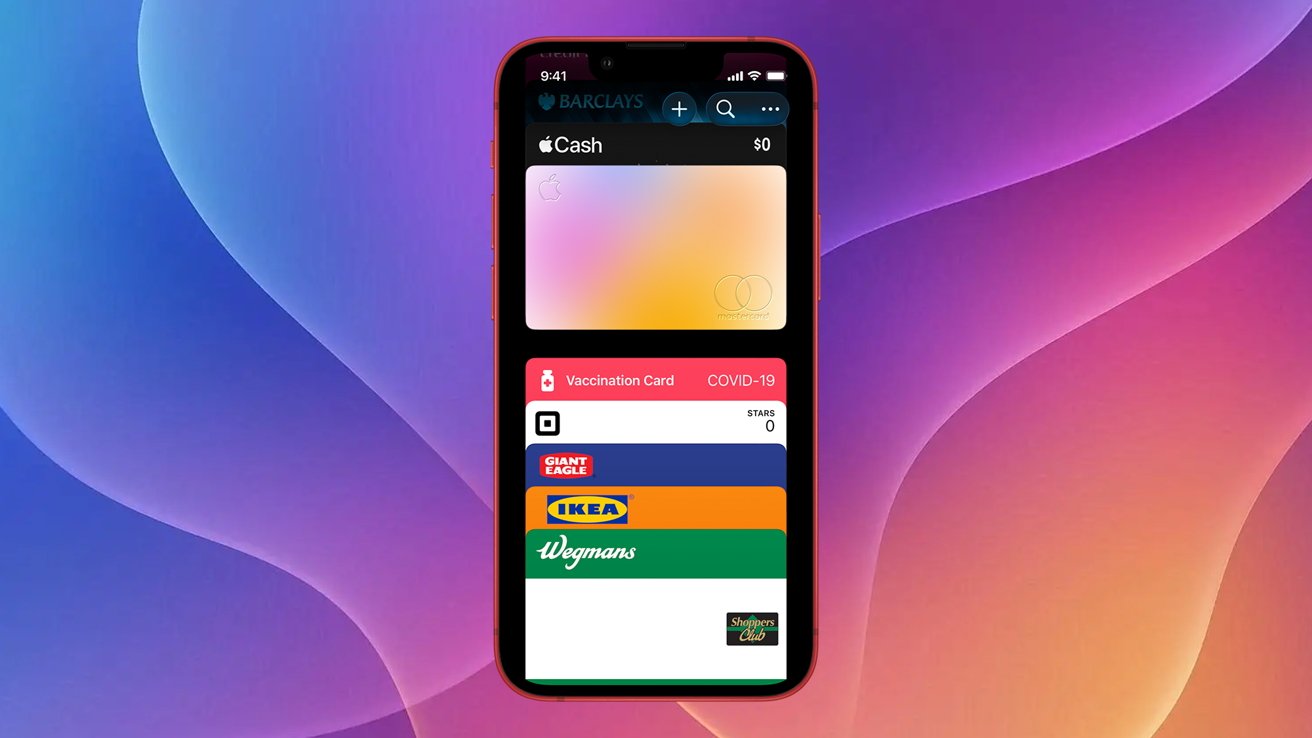





You already know the Apple Wallet app stores credit and debit cards, but it can also hold unsupported rewards and membership cards. Here’s how to set it up in iOS 26.
Like most of us, you’ve probably accumulated dozens of loyalty and rewards cards over time, and they always seem to disappear right when you need them.
Instead of digging through your wallet, bag, or pockets, you can store those cards directly in the Wallet app, making them much easier to access when needed.
Some loyalty cards can be added automatically via an in-app prompt or a button on the retailer’s website. However, many are not officially supported, but there’s a simple workaround.
For this method, we’ll use Pass2U, a popular wallet management app. It’s free to use, with a one-time $2.99 in-app purchase that unlocks extra customization options, additional barcode formats, and removes ads and watermarks.
You can use it for rewards cards, gift cards, boarding passes, and store membership cards. Although Pass2U also mentions ID cards, it’s best not to rely on it as a replacement for official identification like a driver’s license.
How to add a rewards or membership card to iPhone
Download the Pass2U app from the App Store
Open the app
Tap Pass Store at the bottom
Search for your rewards or membership program
Select a template
Tap Next
Fill in the required details
Scan the card’s barcode using the scan option
Tap Done to save
Note: You don’t need to purchase anything from the Pass Store to use a template.
That’s it—your card will now appear in Apple Wallet for easy access. It’s a simple way to keep everything in one place, especially since you’re far more likely to have your iPhone with you than a stack of physical cards.
iPhone 18 Pro Max won’t get any thinner as Apple shifts focus elsewhere
Apple’s upcoming iPhone 18 Pro Max is reportedly not getting any thinner than its predecessor, disappointing expectations for a slimmer design.
A new report claims Apple’s 2026 flagship will measure 8.75mm in thickness, the same as the iPhone 17 Pro Max. That would still make it thicker than the iPhone 16 Pro Max, which measured 8.25mm.
The information comes from well-known Weibo leaker Ice Universe, who had previously suggested in March that the device would measure around 8.8mm, indicating only a minor increase.
Regardless of slight variations in the figures, the overall expectation now is that the iPhone 18 Pro Max will not be thinner than the current model.
According to the leaker, the reason may be Apple’s shifting priorities. Instead of focusing heavily on slimming down the Pro Max model, the company is reportedly dedicating more resources to another major project.
The report claims Apple has redirected much of its attention toward developing its first foldable iPhone—often referred to as the “iPhone Ultra” or “iPhone Fold.” As Apple’s first entry into the foldable market, it is said to be receiving significant engineering focus.
Ice Universe has a generally strong track record for accurate device dimensions ahead of launches, though not every claim is guaranteed. Still, the consistency of recent reports suggests Apple is unlikely to prioritize a thinner Pro Max design this cycle.
How to add third-party cards to the Apple Wallet app in iOS 26